macOS 14 · Native Swift · Version 1.0

A file manager that knows what is on your disk.

Browse, search, sort, move, rename in bulk, collect and inspect — with a storage dashboard that answers what is taking up the space, a duplicate hunt that reads bytes rather than guesses, and a media player for the files that have one. Written in Swift and SwiftUI on system frameworks: no Electron, no web view, and nothing sent anywhere.

One-time purchase · Free updates through 1.x · Apple silicon and Intel

Not a mock-up of the app — the app's own numbers. The palette, the 246 pt sidebar, the 46 pt rows, the 26 pt status bar and every column width are read straight out of Theme.swift, PaneLayout and the views themselves, and drawn here at the window's true size of 1440 × 900.

Browsing

A file list built for folders that got out of hand.

The middle pane is a real AppKit table underneath, so a folder with fifty thousand entries scrolls the way a folder with ten does. Click, ⇧-click for a range, ⌘-click to toggle, arrow keys and ⌘A behave exactly as they do in Finder. What differs is how much the row is willing to tell you before you open anything.

Two views, one set of columns

The list shows number, name, kind, size, date modified, tempo, a favourite heart and duration. The grid shows artwork at a size you can actually judge. Row height follows the density setting — compact 34 pt, standard 46 pt, comfortable 54 pt — and the artwork follows the row. Columns retire gracefully as the pane narrows: extras go first, then the date, then the kind. The name never gives way, because it is the one thing that identifies the file.

Artwork where it helps

Media and documents get a Quick Look cover; everything else gets its system icon immediately, with no waiting. Previews are capped — four at a time by default, adjustable — and generated only for rows on screen. Press space, or use the inspector's button, and the file opens in a proper Quick Look window.

The library is yours to arrange

Home, Desktop, Documents, Downloads, Music, Movies, Pictures, Applications and every mounted volume, plus any folder you pin yourself. Drag the rows into the order you want; the order is exact, because each row lands in a slot rather than wherever a hit-test decides. Right-click for Open, Show in Finder, or Remove from Library.

Search that changes gear

Typing filters the folder you are standing in — on every keystroke, or only on Return, whichever you prefer. Press Return and the search goes recursive, walking downward from where you are, collecting up to a limit you set, optionally including hidden entries. Deep results keep their parent folder as a subtitle so you can tell two final.mov apart.

Sorting and filters on one strip

Sort by name, kind, size, date modified, duration or tempo, ascending or descending. Above the list sits a row of filters: All, Audio, Video, Pictures, Documents, Code and Archives, then four orderings worth one click — recently modified, largest first, highest tempo, A–Z.

Context the folder already has

When a folder sits inside a Git repository, the header shows the branch and how many files have changed, and each row carries a one-letter state. When the index recognises a folder as work — a video, audio, photography, design or development project — a chip says which, and the inspector lists the evidence it used: a Git repository, a project file, a session, a catalogue, a folder layout, a pile of camera raws.

The inspector

A pane on the right for the selected file: play it, Quick Look it, read its tempo, see the media family it belongs to, jump to the project that contains it, and read everything the file knows about itself — artist, album, genre, year, sample rate, channels, bit rate, codec, resolution, frame rate, dates and the full path.


Moving things

One queue, and an undo.

Copying, moving, renaming and trashing all go through the same queue. It reports progress in the status bar, and it can be paused, resumed and cancelled while it runs. Nothing is ever overwritten: a collision lands as name 2.png, and what should happen instead is a setting, not a guess. Finished operations are kept in a history — as many as you choose to remember — and a move, a rename, a copy or a trip to the Trash can be undone from there.

Deleting asks first, if you want it to, and nothing is deleted outright: files go to the Trash, where macOS can put them back.

Copy · 6 files to Masters 202672 %
Rename · 148 itemsDone · Undo
Move · Sunset roll 4K.mov34 %
Copy · Session notes.mdname 2.md

The shelf

A named pile of files that stays put while you walk around the disk. Collect in one folder, keep browsing, and act on the whole pile once you are standing where you want it — move, copy or rename it in one go. The shelf holds references, never copies, so nothing is duplicated until you say so, and you can keep several shelves for several jobs at once. Files can be reordered inside it, and dropped from it as easily as they were added.

The copy queue

The other half of the same idea, for the times you want a clipboard that does not forget. Add files as you find them, watch the count in the status bar, and paste the lot into the folder you end up in. It survives navigation, and it tells you what is waiting in it before you commit.


Renaming

Nine steps, run in order, shown before they run.

Batch renaming is a pipeline, not a single find-and-replace. Add the steps you need, arrange them, switch any of them off without deleting it, and watch the table beneath show every current name against every new one. Conflicts are counted before anything is written. When a pipeline earns its keep, save it as a recipe and use it again next week.

Find and replacePlain text, or a full regular expression when you switch it on.
Add prefixText in front of every name.
Add suffixText at the end, before the extension.
Number the filesStart value, how many digits, at the start or the end.
Change caselower case, UPPER CASE, Title Case or Sentence case.
Trim charactersCut a fixed number from the start, the end, or both.
Insert dateDate modified, date created or today, in a format you write.
Name from a patternBuild the name out of tokens such as {name}.
Change extensionSet it, or leave it exactly as it was.

The table has two columns, current name and new name, and it updates as you type. Nothing reaches the disk until you press the button, and when it does it goes through the same queue as everything else — which means it can be undone.


Organising

Order without moving anything.

Some things belong together without belonging in the same folder. A collection is an ordered list of paths, gathered from anywhere on the machine — drag files onto it in the sidebar, or use the context menu. Nothing is copied and nothing is moved. Give it a name, a note and a cover of your own by dropping an image on it, and it reads like a record sleeve in the sidebar.

Favourites

A heart on any row, a view of its own, and a count in the sidebar. It survives restarts, and it is the fastest way to keep the eight files you are actually working on within one click, regardless of where they live.

The command centre

⌘K opens one field over the window. It searches four things at once: actions, your library, your collections and the files in the index — without touching the disk on every keystroke. Results are grouped, the keyboard drives all of it, and the count is shown as you narrow.

What ⌘K can do

Open the dashboard, favourites or the inspector. Toggle hidden files or the view mode. Go up a folder. Open the folder in Finder or a terminal. Pin it to the library. Start a duplicate hunt or a reindex. Open the shelf, add the selection to it, paste the copy queue, rename, play or pause.


The dashboard

Honest numbers, or none at all.

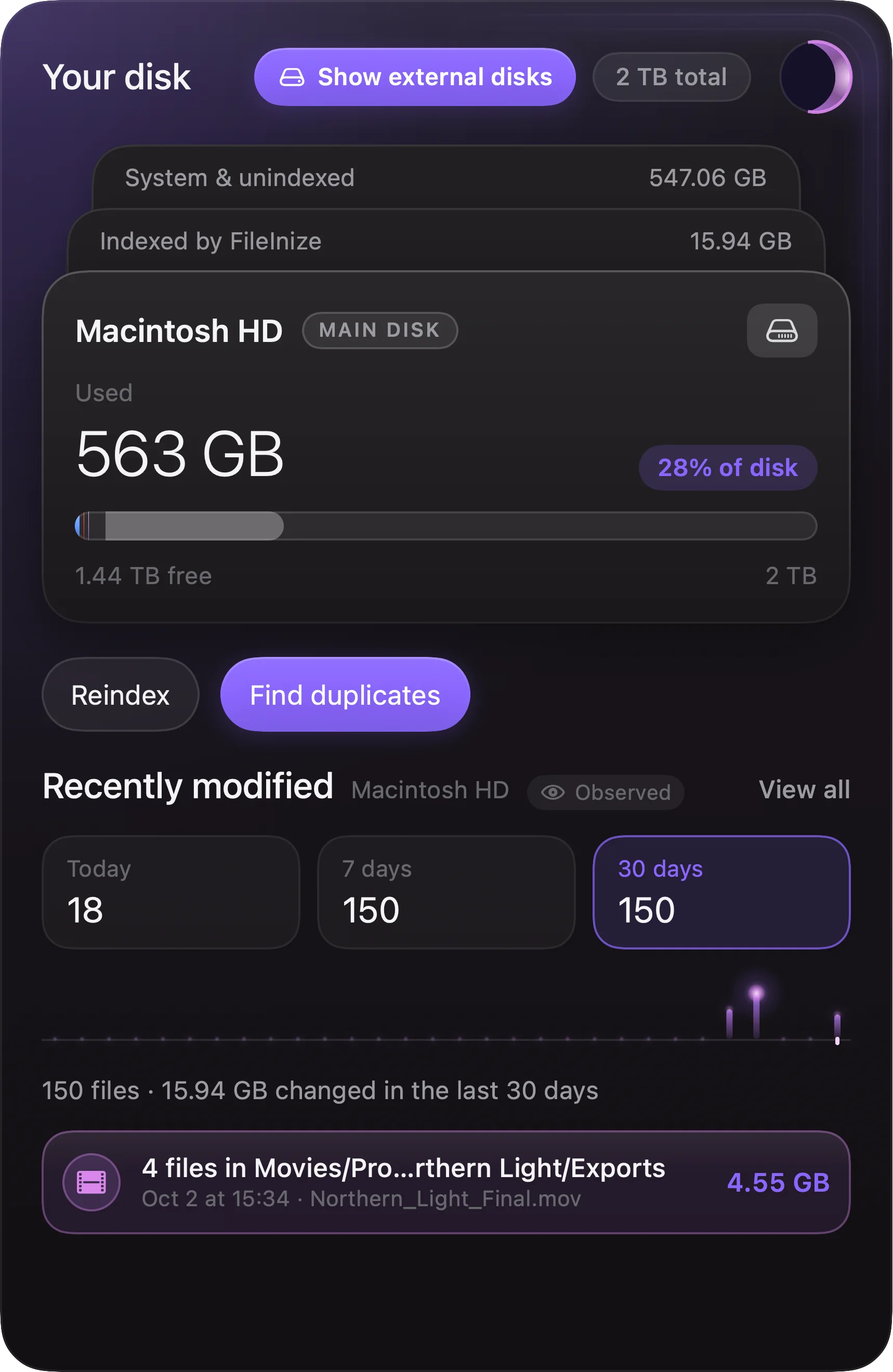
A tab of its own at the top of the sidebar, and the reason the app knows anything. A local index walks your disk once, keeps itself current through FSEvents, caches to disk and updates incrementally — events from caches and build folders are filtered out before they cost anything. Every card states where its figures came from: measured, observed, guessed or estimated. Nothing is invented to fill a gap.

Macintosh HD
1.02 TBused 412 GBfree 1.44 TBtotal 71 %of the disk in use
Video 412 GB
Audio 221 GB
Image 140 GB
Archive 112 GB
Documents 78 GB
Code 37 GB
measured observed estimated

Nothing is invented

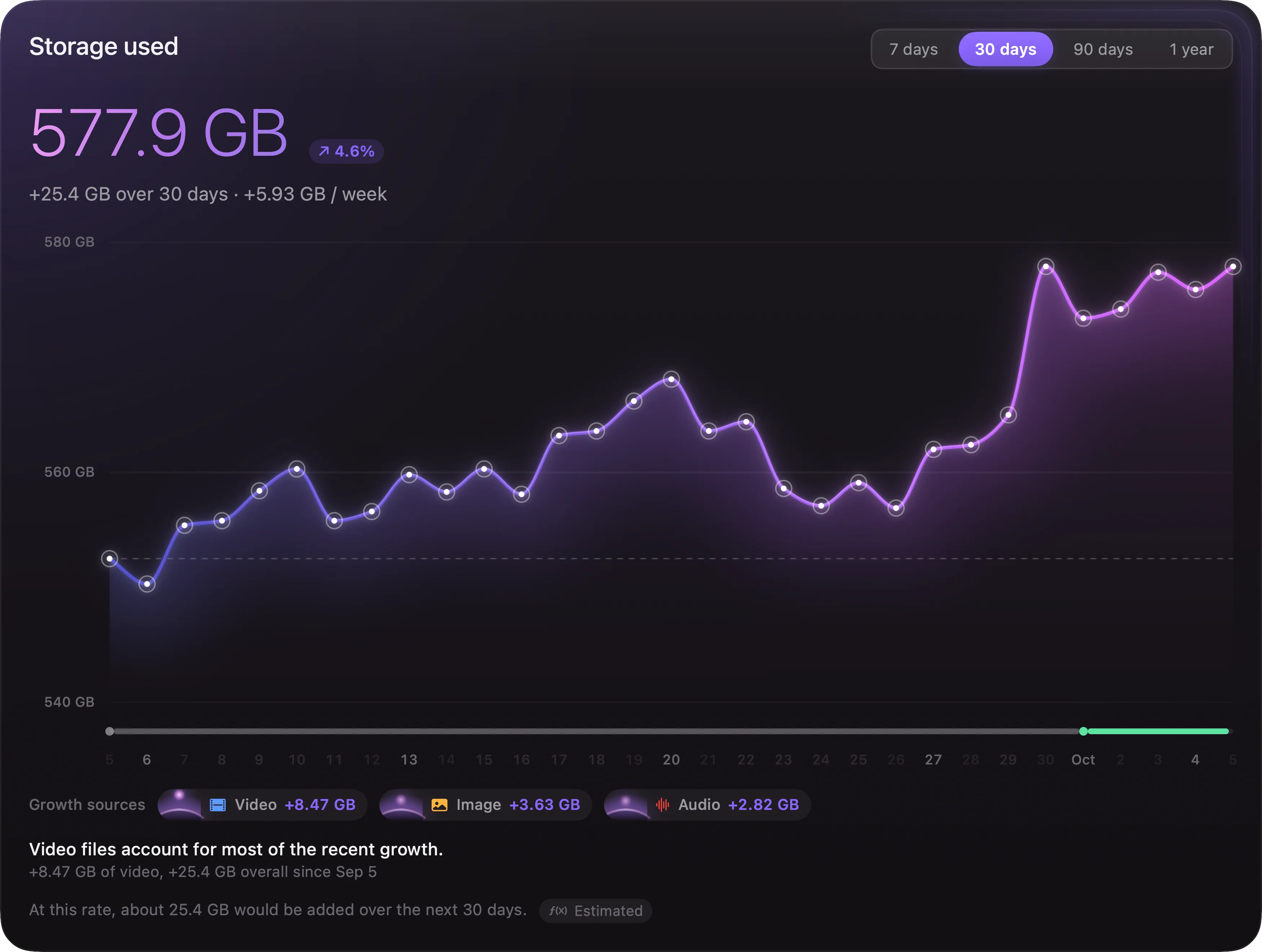
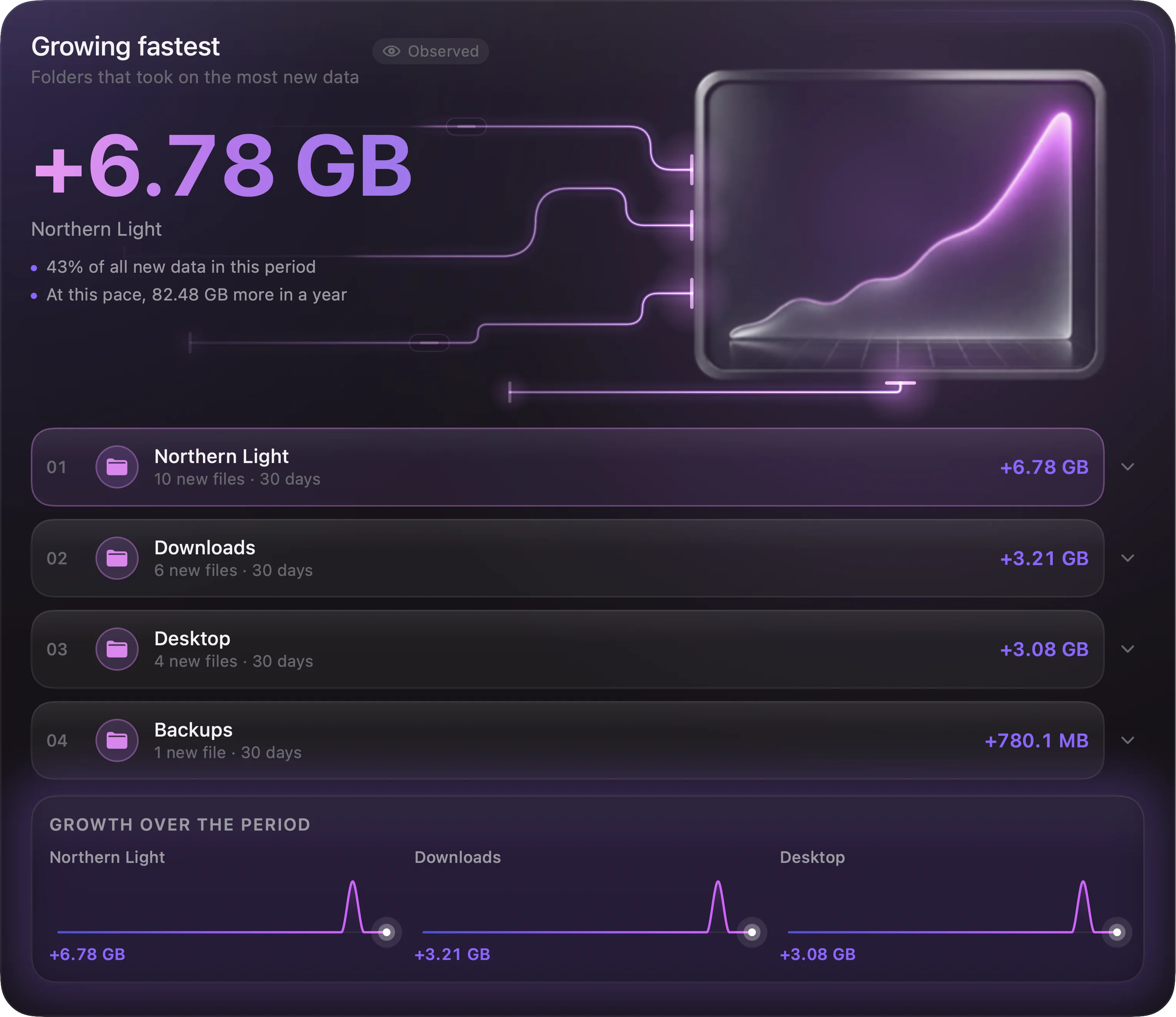
Change over time needs two readings. On the first day there is only one, so the growth card says so — in those words — instead of drawing a flat line and calling it a trend. Readings are recorded daily and kept for as long as you choose; you can clear them whenever you like.

Historical data is not available yet

Sixteen cards, your order

Every card can be hidden, and the ones you keep can be arranged in any order. The dashboard renders that list and nothing else — there is no section for a feature that does not exist yet. A time range at the top sets the period the whole page reads.

Storage over timeChange between recorded days, with a rate per day and what it projects to over the next month.
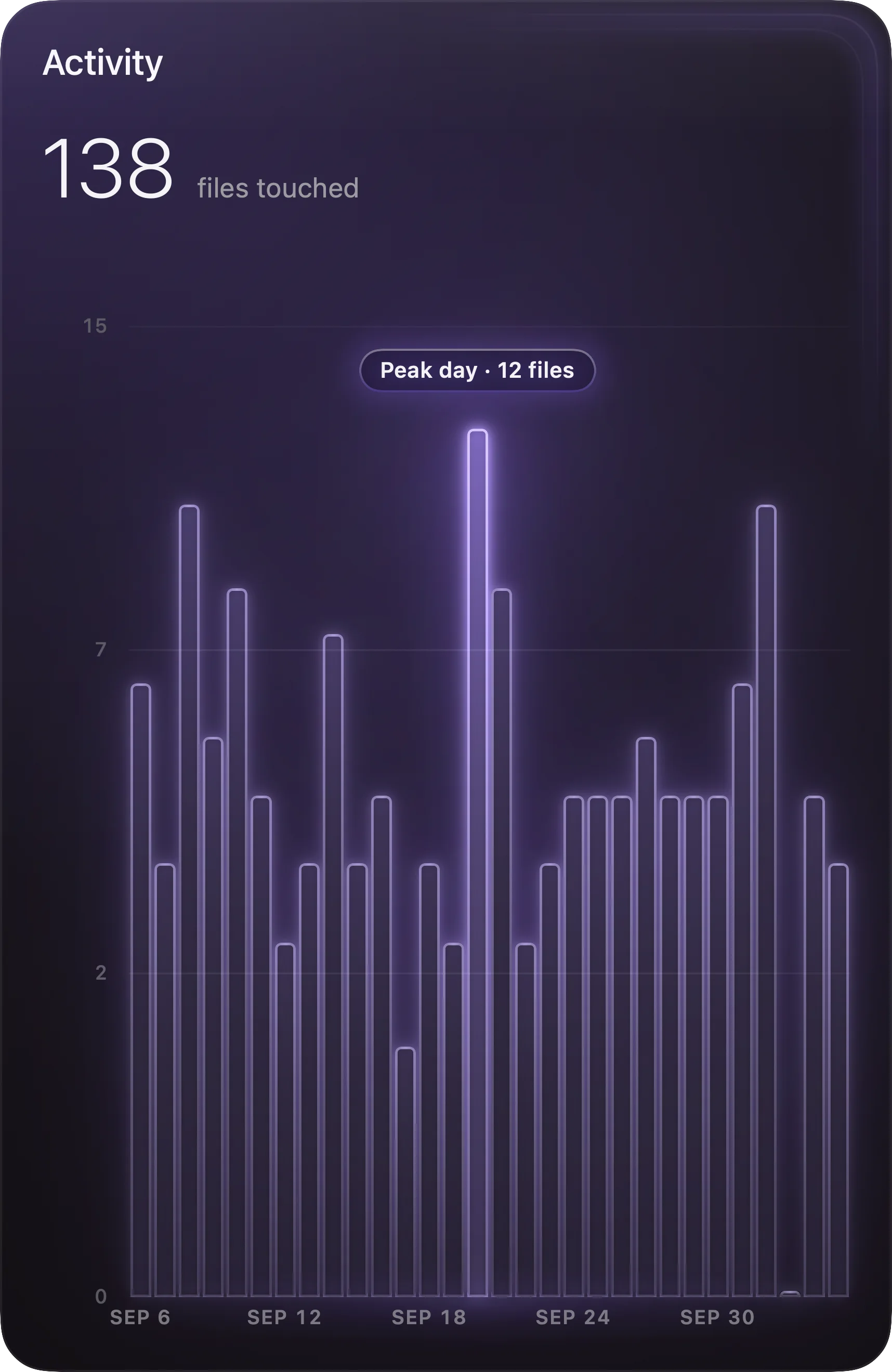
ActivityA day-by-day heatmap built from modification dates, with the busiest day called out.
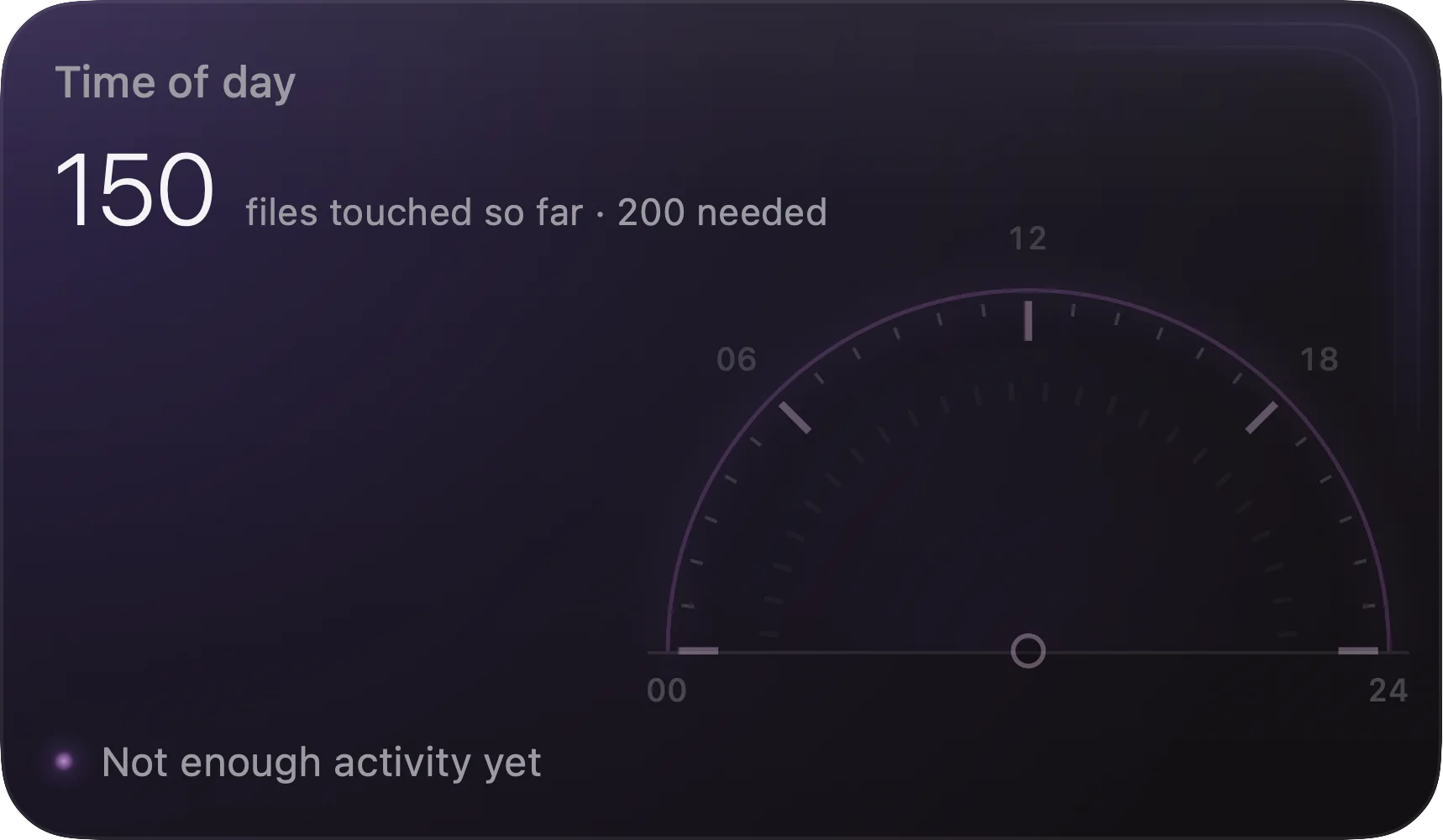
Time of dayWhich hours your files were last touched — the shape of your working day.
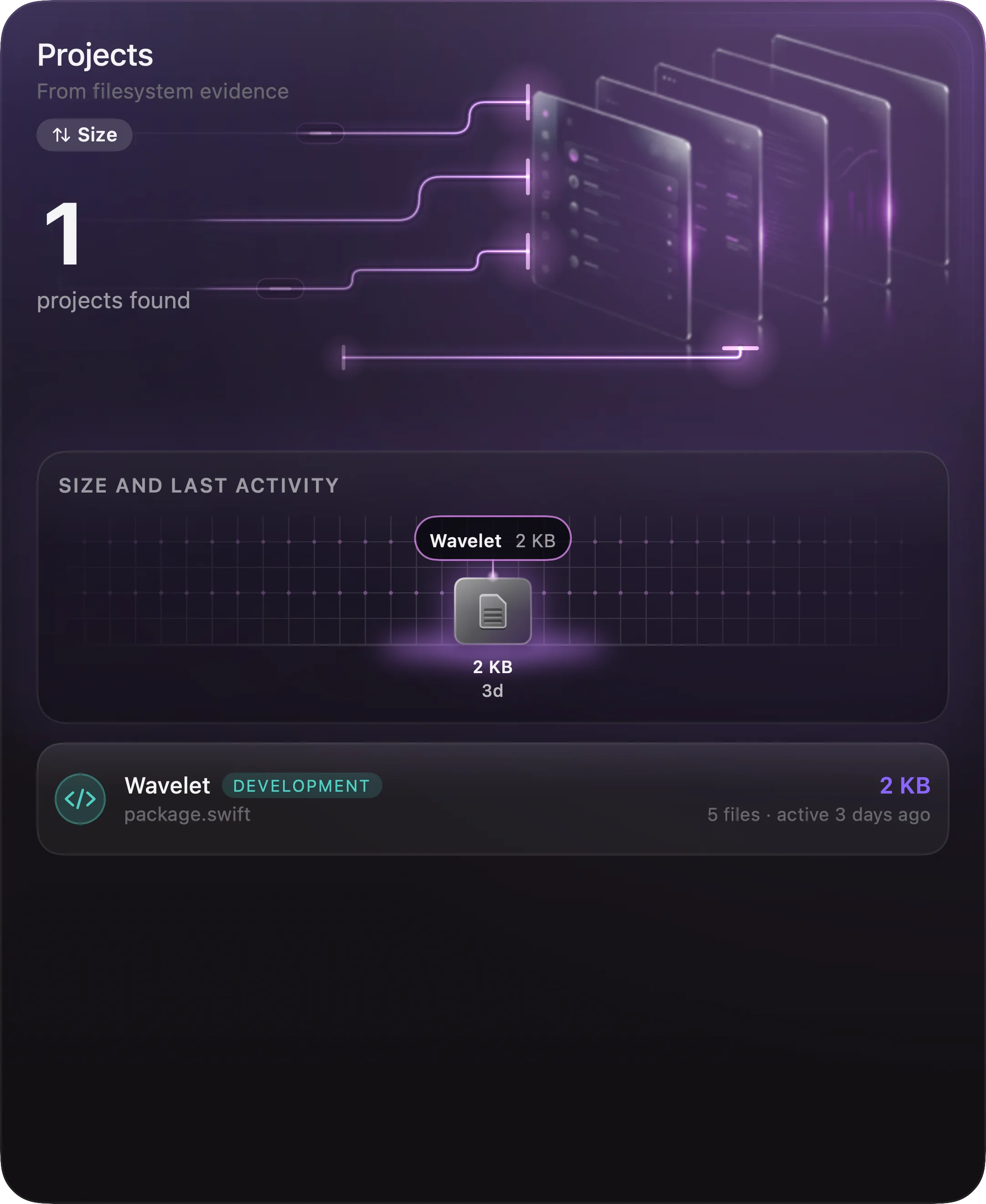
ProjectsFolders the index recognises as work, each with the evidence that made it think so.
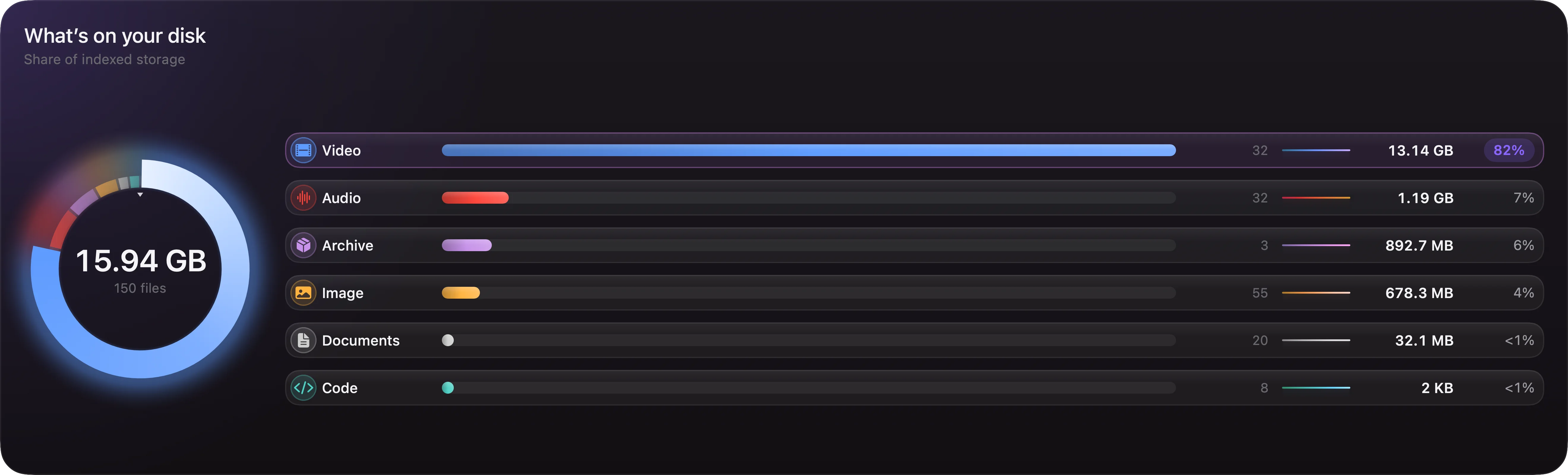
BreakdownStorage per category as a share of everything indexed.
Your filesHow many files of each kind, in plain counts.
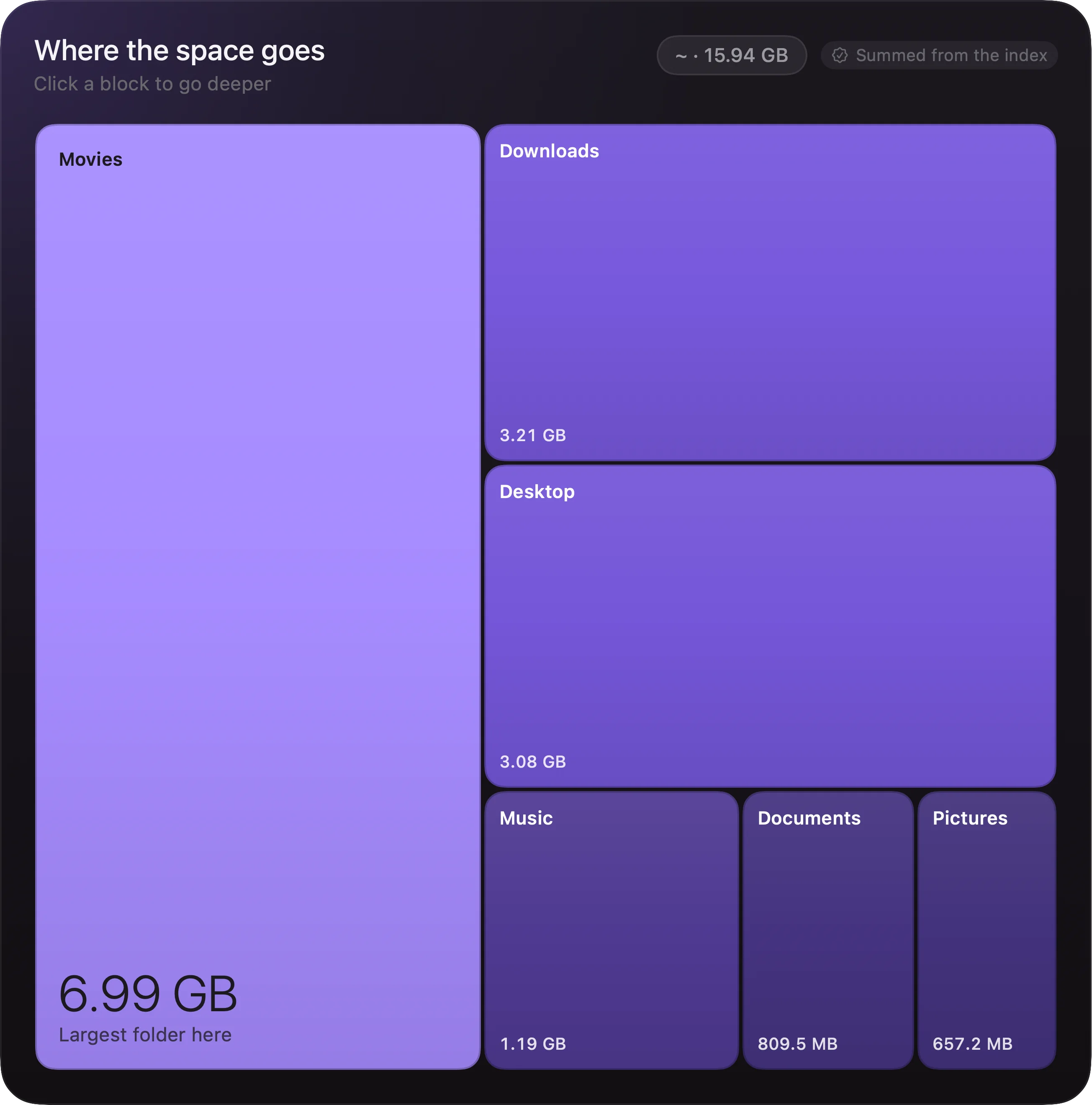
Where the space goesA treemap of folder sizes. Click a block to go deeper, double-click to open the folder.
Largest foldersThe heaviest folders, with file and subfolder counts.
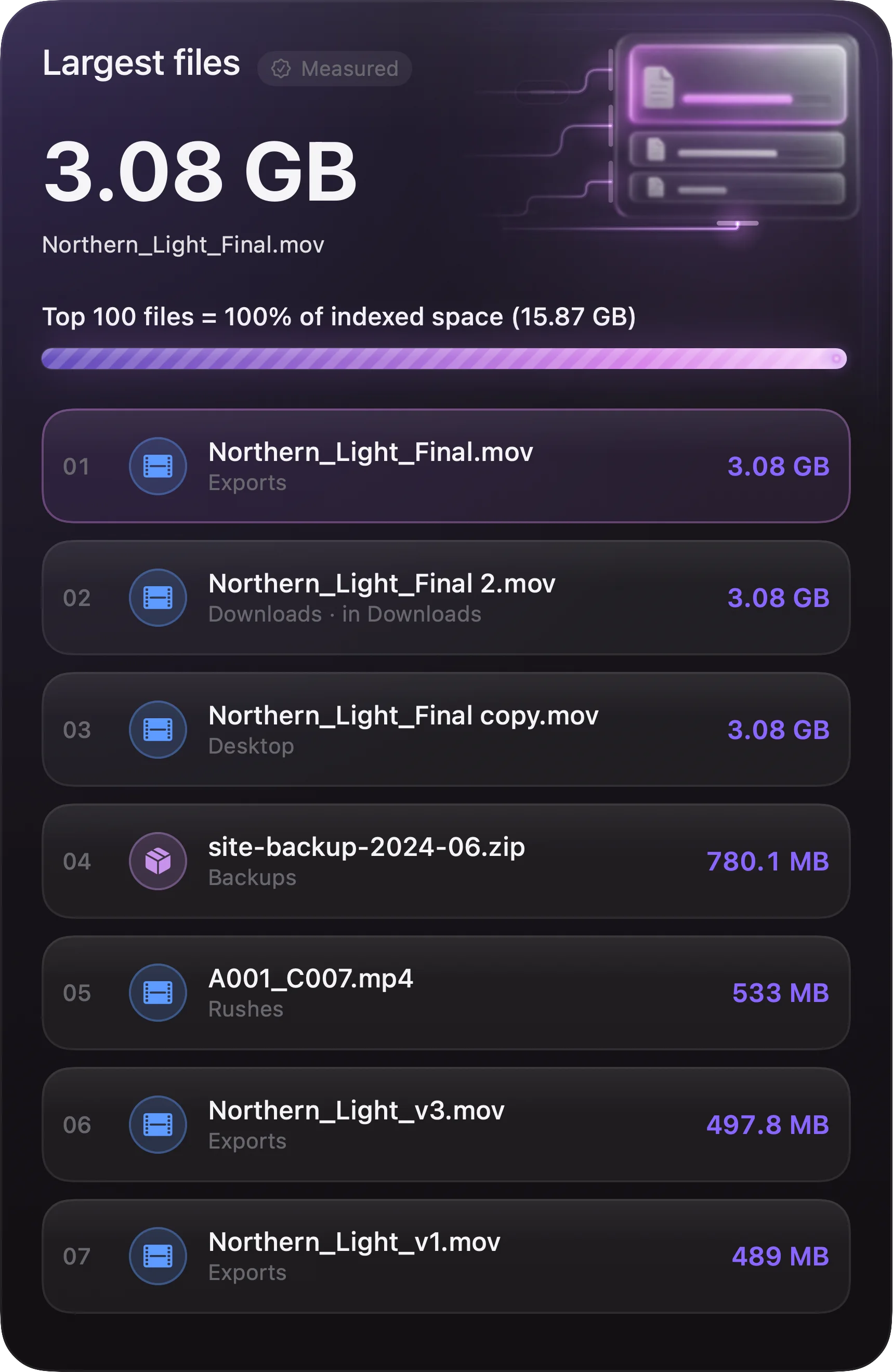
Largest files and recently modifiedTwo lists side by side: what is biggest, and what moved last.
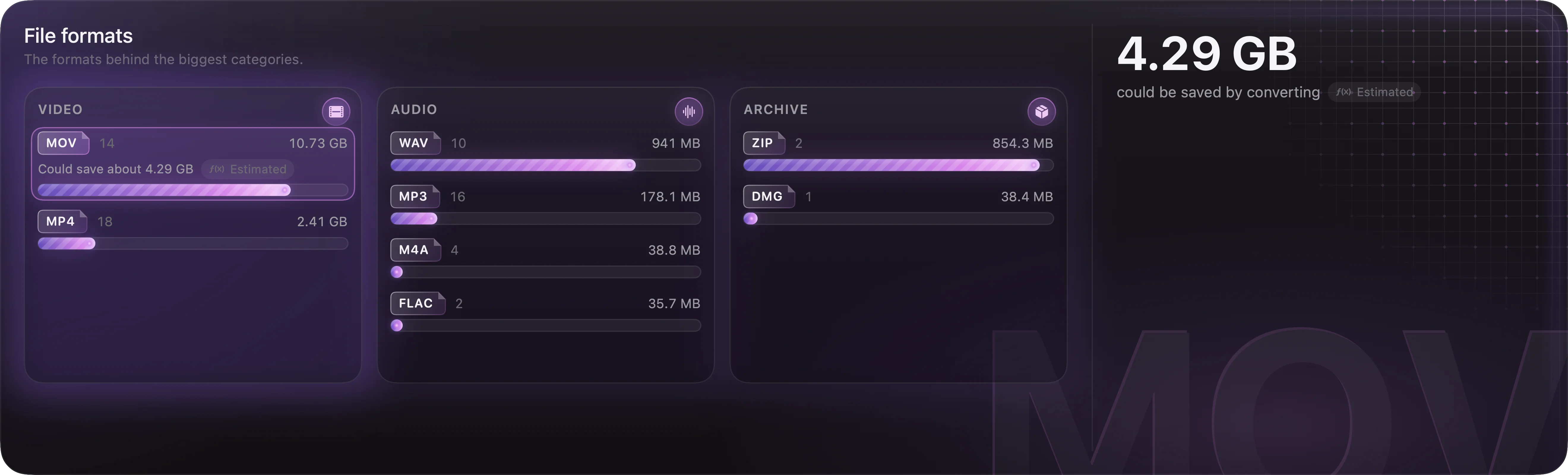
File formatsThe formats behind the three biggest categories.
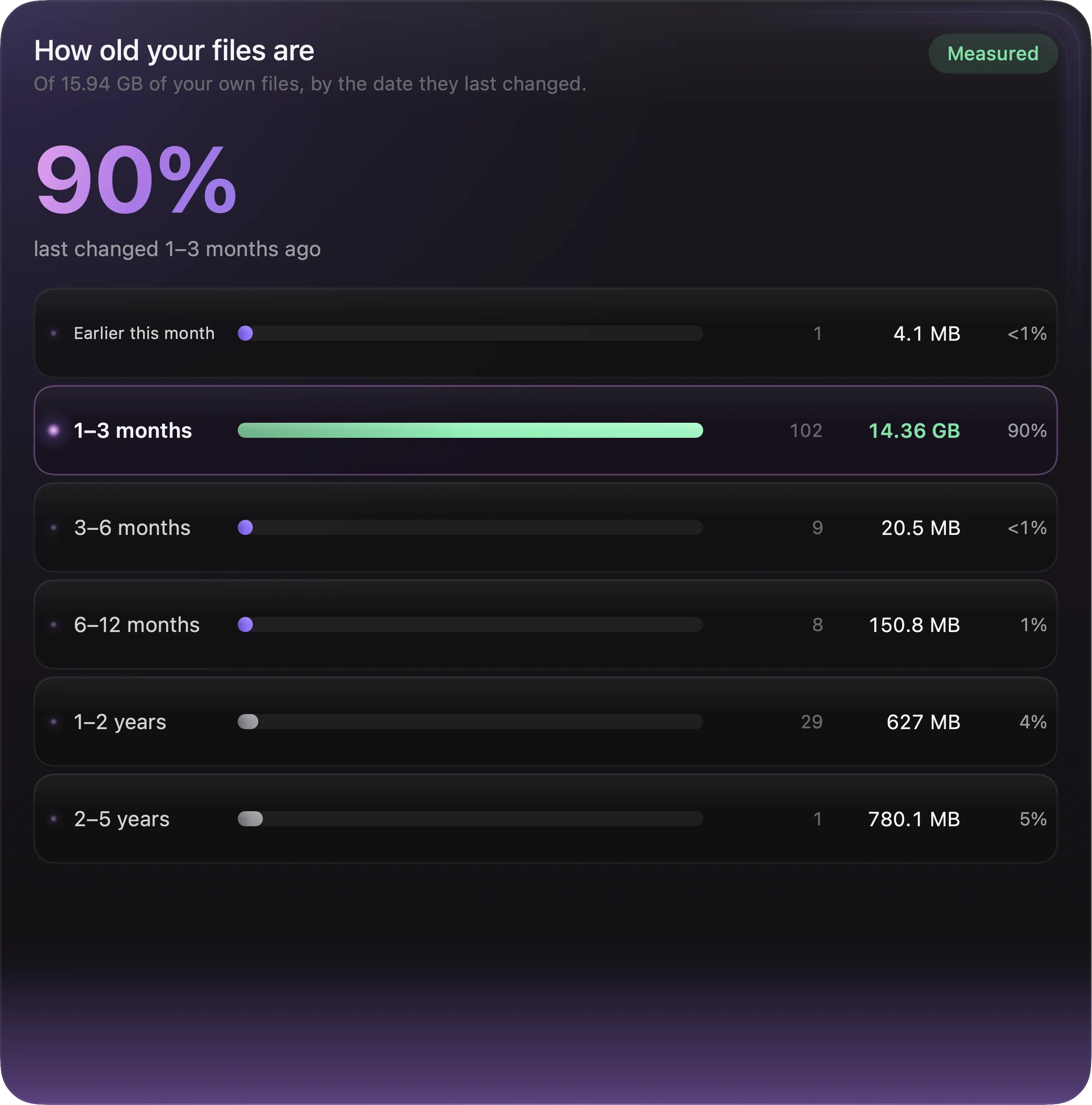
How old your files areFiles grouped by how long since they last changed.
ConcentrationHow much of the disk the very biggest files account for.
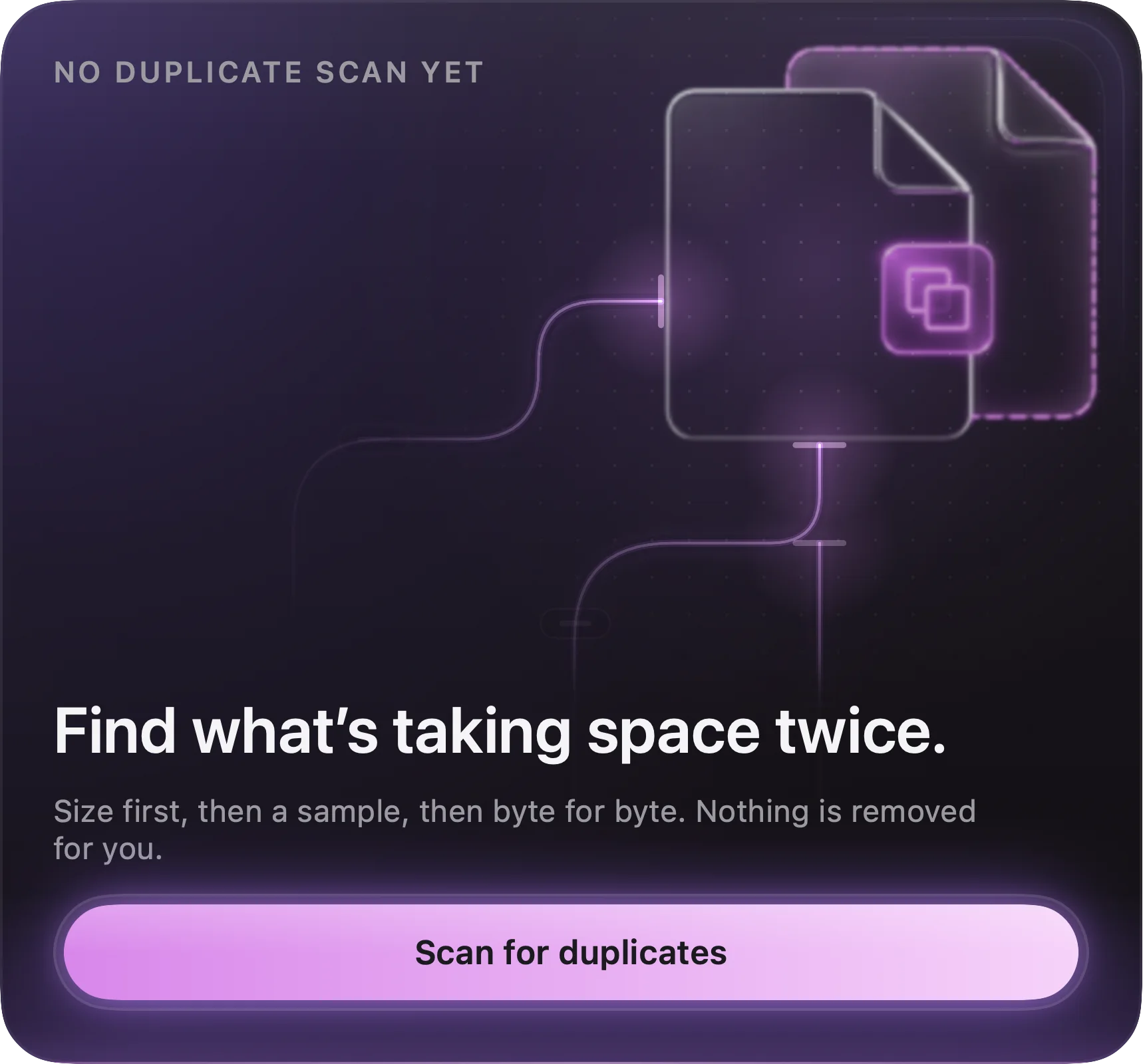
DuplicatesByte-for-byte identical files, grouped, with what could be reclaimed.
Version familiesFiles that look like versions of one another — an original and what was made from it.
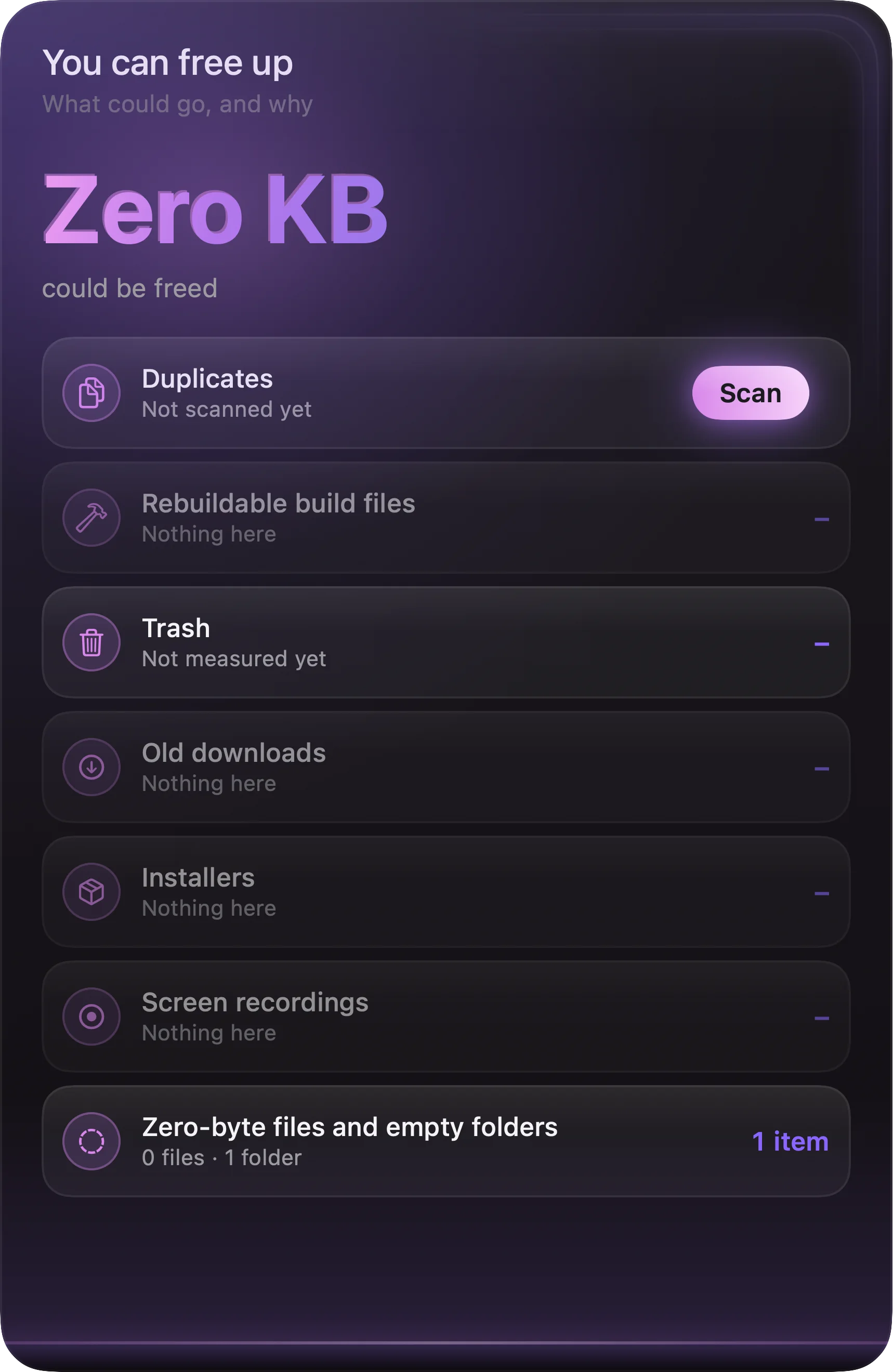
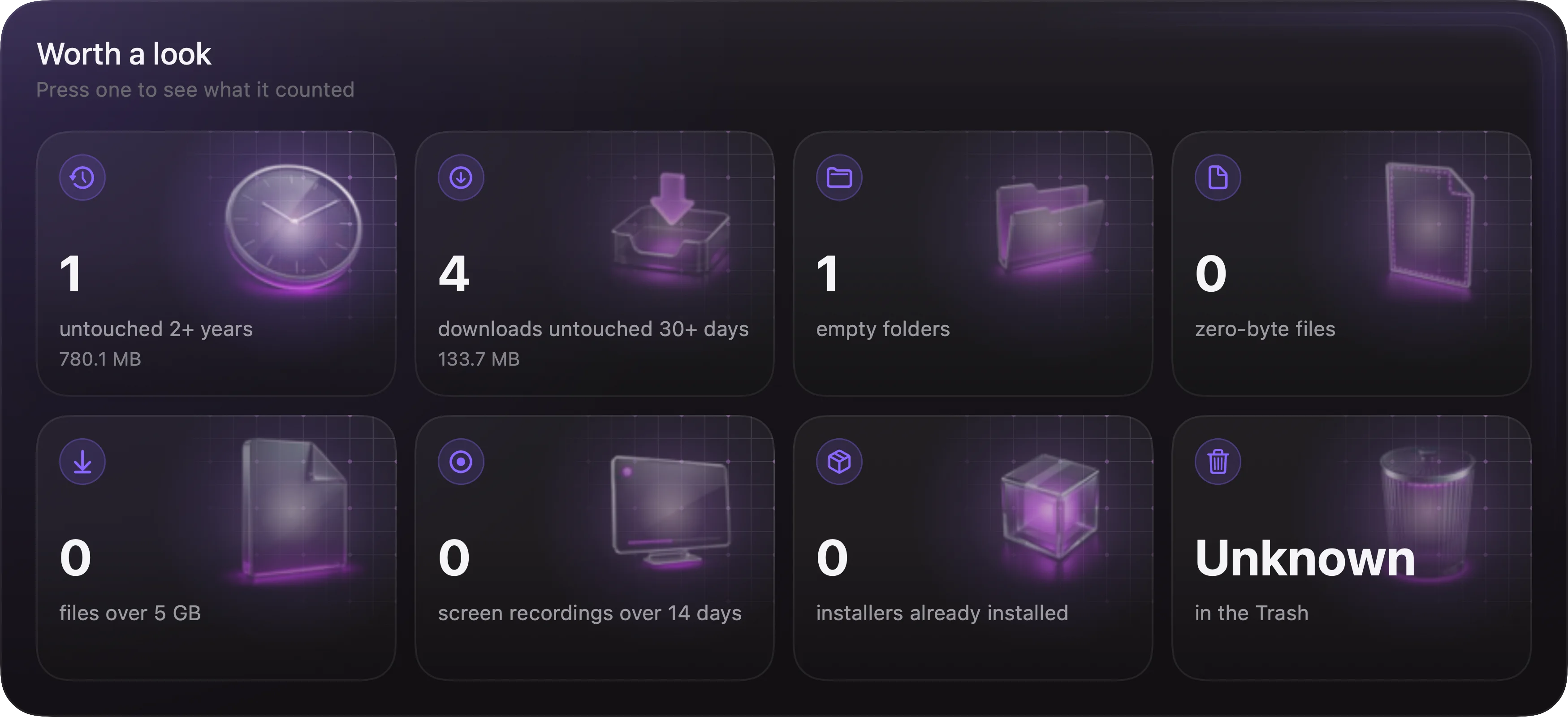
Worth a lookA neutral read-out: stale files, very large files, empty folders. Not advice to delete.
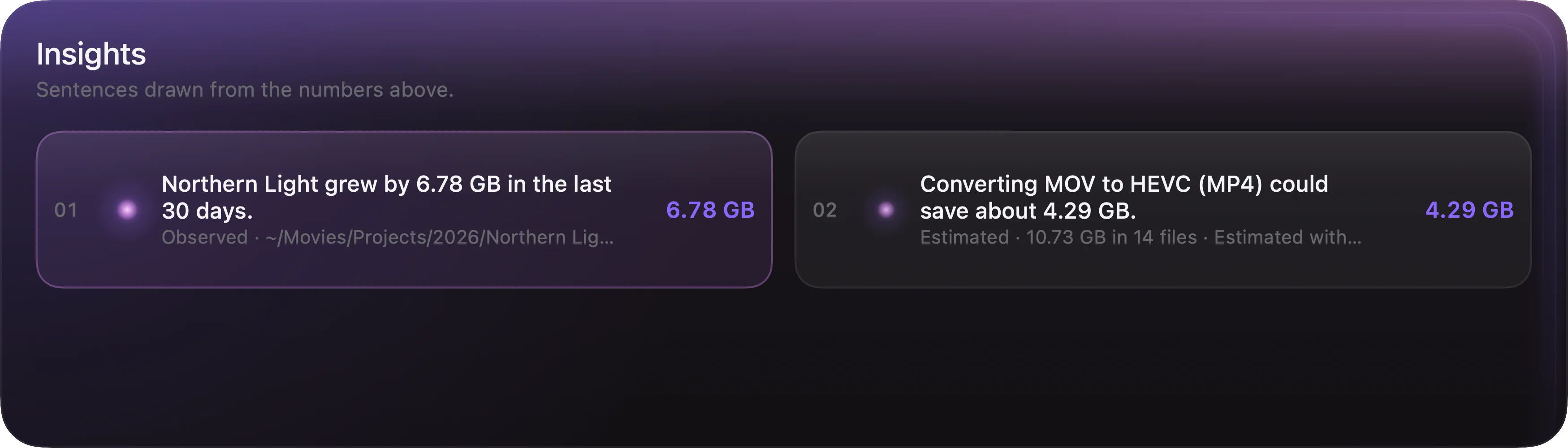
InsightsThe short version of everything above, in sentences.

Duplicates

Three passes, and only the last one is expensive

Sizes shared by fewer than two files are discarded before a single byte is read. What survives is compared on its first and last blocks — two small reads instead of a full pass over a gigabyte. Only the files that still agree are read in full. The result is a group of identical copies and the space one of them is costing you. Nothing is removed; the group is shown, and you decide. The smallest file worth considering is a setting, so a thousand identical icons never enter the hunt.

Version families

The original, and everything made from it

A filename is reduced to what its versions have in common: A001_C003 survives, while _proxy, -final, -1080p and a trailing number do not. Files sharing a stem are read as one family, ordered by what came off the camera first and what was made from it after. It works on the folder in front of you rather than the index, so a 2 MB subtitle and a 40 GB camera original are equally visible to it — and because every part of it is inference, the interface says so wherever it shows one.


Media

It plays what it lists.

Double-click and it plays — audio and video through one engine, with a queue, shuffle and repeat. The player bar appears at the top of the window only while something is playing, and leaves when it stops. Video docks below the bar, so transport stays under your hands, and reports resolution, frame rate, codec and bit rate. Metadata is read per file and cached: artist, album, genre, year, sample rate, channels and duration all become columns you can sort by.

Tempo is part of that. When a file carries a tempo tag, FileInize trusts it. When it doesn't, the audio itself is analysed — energy curve, onset flux, comb-weighted autocorrelation, harmonic refinement — and a value that was estimated rather than read is marked with a tilde, so you always know which is which.

Verified against generated test tones. A track costs roughly 0.2 s, and only the rows actually on screen are ever analysed.

Test toneReportedError
92 BPM92.1+0.1
128 BPM128.00.0
174 BPM173.7−0.3

Settings

Thirteen sections, and a search field that finds the one you mean.

⌘, or the gear at the foot of the sidebar. Every control governs something real, and the search box matches on titles, descriptions and the words you would have used instead. There is no section for features that do not exist.

GeneralWhat opens at launch — the dashboard, the last folder, or one you choose. The default view and sorting for a folder you have not opened before. Hidden files on or off.
AppearanceTheme (black or white — a real switch, not a half-lit middle), accent colour, row density, animations, and the small counts beside favourites and collections.
BrowsingHow many folders are counted for item totals before the app stops asking the disk.
FilesWhether the Trash asks first, what happens on a name collision, and how many finished operations the history remembers.
SearchFilter on every keystroke or only on Return, how many results a recursive search collects, and whether hidden entries are included.
IndexingKeep the index current or not, how hard it is allowed to work, which folders it must leave alone entirely, whether hidden files count, and how stale it may get before a full walk.
DashboardWhich cards appear and in what order, and the time range the dashboard opens on.
HistoryHow long recorded storage readings are kept — and a button that forgets every one of them.
Storage intelligenceThe smallest file the duplicate hunt will consider, how long untouched before a file counts as stale, and what counts as large.
PerformanceQuick Look preview generation on or off, and how many previews may be built at once.
AccountSign in with an email address and a one-time code. What travels between your Macs, and what stays on this one.
PrivacyWhat is stored and where, and the folders macOS has not let FileInize read — with a button that asks for them properly.
Shortcuts & AboutEvery keyboard shortcut the app responds to, the version, and a reset that puts every preference back.
What leaves the machine

Nothing, unless you ask it to.

Without an account, FileInize opens no network connection at all. With one — an email address and a one-time code, no password — the preferences that are not about this particular Mac follow you: theme, accent, density, view and sort defaults, search rules, dashboard cards and thresholds. Paths, window sizes, indexing intensity, the index itself, your history, collections, shelves and the copy queue stay here. Per setting, the most recent change wins.

The app is unsandboxed, so macOS asks the first time it reads Desktop, Documents or Downloads. Refuse, and the folder shows a button that opens a picker instead of a dead end — and the storage view lists the folders it was not allowed to read, rather than quietly leaving them out of the totals.

0 %CPU at rest, measured in folders holding tens of thousands of files.
0.2 sTo analyse a track's tempo — and only for rows that are actually on screen.
1External dependency in the whole app, and it exists only for the optional account.

The app is built to stand still when it is doing nothing. Metadata and tempo are read only for rows you can see. Quick Look is capped and used only where it helps. The playhead lives in its own observable object, so the file list is not redrawn while music plays. Level meters are drawn in a canvas and animate only during playback. Indexing is duty-cycled and incremental.

RequiresmacOS 14 Sonoma or later · Apple silicon and Intel
Built withSwift 6 and SwiftUI on system frameworks. No Electron, no web view, no bundled browser.
DistributionDirect download, outside the Mac App Store. Signed, notarised, updates in-app.
Command line--play a file, --collection a list, --storage the dashboard, --settings the preferences.
LicenceOne-time purchase for your own Macs. Free updates through 1.x.
Version1.0.0
Buy once, keep it
$29

One payment. No subscription, no account required to use the app, and no upsell inside it.

  • Free updates through 1.x
  • Use it on your own Macs
  • Secure checkout by Lemon Squeezy
  • macOS 14 or later